












-
⚠️ IMPORTANT INFORMATION: Installation and Charging Warning
-
This item you have purchased has universal compatibility technology.
-
In this way, your tablet imitates the sensitivity of your finger while detecting the pen.
-
Please read the following setting and charging instructions carefully so that your product can operate for a long time without deterioration.
-
🔌 1st CHARGING RULE (Please Note!)
-
The battery of this pen has a delicate structure.
-
New generation fast charging adapters (20W, Samsung 25W/45W etc.
-
) prevents the pen from charging because it gives high voltage or DESTROYS the device by burning the battery.
-
❌ Never Use: Phone/tablet adapters with Fast Charge.
-
✅ Recommended Charging Method: The healthiest method to charge the pen is with PC or Laptop USB ports.
-
✅ Alternative: If you are going to plug in, use only old-style, low-current (Maximum 5V 1A or 5V 2A) standard charging heads.
-
⚙️ 2 nd TABLET SETTINGS (Do This if Not Writing Pen)
-
On some tablets, factory or retrofitted settings may prevent the use of external pens.
-
Before using the pen, you must turn off the following settings according to your device:
-
For 🍏 iPad Users:
-
iPad is set to block touches other than the original stylus.
-
Settings >
-
Go to the Pencil menu
-
"
-
Draw with Pencil Only"
-
TURN OFF THE (Only Draw with Pencil) option.
-
If you have an original Pencil pre-connected to your iPad, disconnect it from the Bluetooth settings ("
-
Forget this device"
-
"Do it!"
-
For 🤖 Samsung, Huawei, Honor and Android Tablets:
-
On your device "
-
Pen Only Mode"
-
this stylus does not work if it is open or the original stylus is connected.
-
Disconnect: An original pen (S-Pen, etc.) that comes with the tablet.
-
) disconnect from Bluetooth settings, if any.
-
Application Permission: In the note application you use (Samsung Notes etc.
-
) from the settings in the top right corner "
-
Allow finger drawing"
-
TURN ON -.
-
"
-
Draw with S-Pen only"
-
If there is a - setting, TURN IT OFF.
-
💡 -General Tip:
-
This pen does not require a Bluetooth connection, you can use it directly by pressing the top/key and turning on the light.
-
If it does not write even though the light is on
-
the reason for the problem is that there is a 99% chance that the above tablet settings have not been made.
-
FULL COMPATIBILITY WITH 📱 ALL DEVICES
-
Regardless of brand or model
-
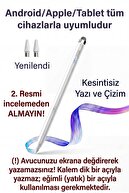
Works seamlessly with your iPad, Samsung, Huawei, iPhone, and all other iOS, Android, and Windows touchscreen tablets and phones.
-
NO 🖊️ BLUETOOTH CONNECTION REQUIRED
-
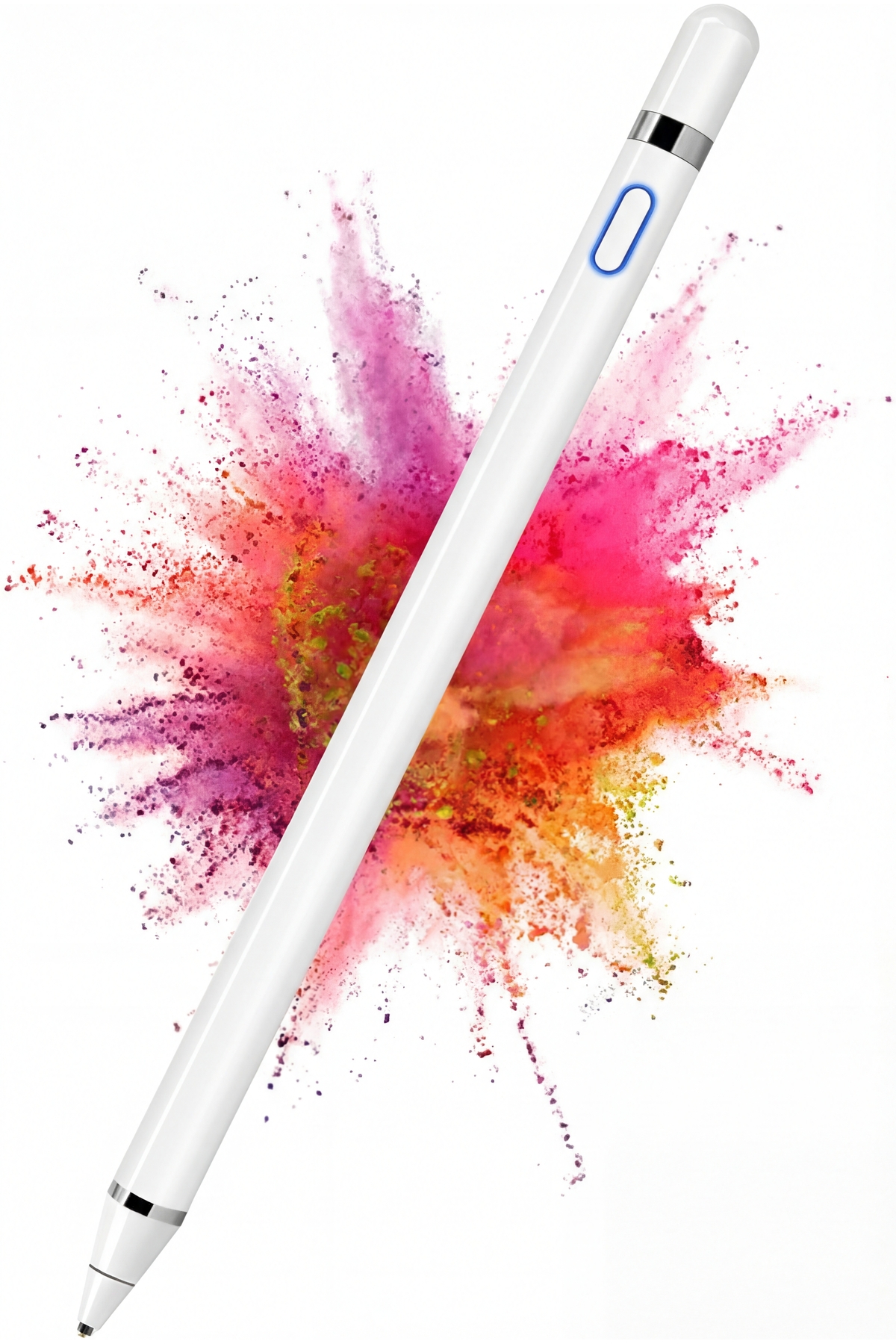
No more complicated matching processes! Thanks to Active Stylus Technology, just press the button on the pen.
-
When the blue light is on, your pen is ready to use.
-
✨ PRECISE AND FLUENT WRITING EXPERIENCE
-
Thanks to its 1.5 mm ultra-thin tip, it gives a natural feel like writing on paper.
-
No Lag: It does not cause line breaks or delays when drawing or taking notes.
-
Anti-Scratch Tip: Made of delicate material that will not damage your screen.
-
Anti-Slip Construction: Allows you to draw stable and smooth lines.
-
🔋 RECHARGEABLE AND LONG LASTING
-
Thanks to its built-in battery, you can use it by charging it without any battery problems.
-
Thanks to the led indicator light, you can easily monitor the on/off status of the pen.
-
WHO IS IT SUITABLE FOR?
-
Beginners to digital drawing
-
Students and office workers taking notes on the tablet
-
Those who want to manage their screen without leaving fingerprints in daily use
-
For children's tablet use and education
-
📦 BOX CONTENTS
-
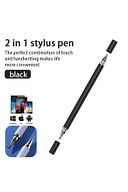
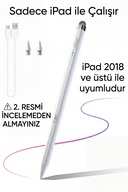
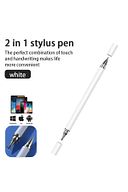
1 Universal Active Stylus Pen (White)
-
1 Charging Cable
-
Feature highlights:
-
Material: High quality ABS and Metal Alloy
-
Compatibility: All devices with capacitive touch screen
-
Usage: One-button on/off (with Blue Light Indicator)
-
Function: Drawing, Writing, Playing Games, Navigation
-
Note: The product is universal model, there is no palm rejection feature.
-
It may be non-contact when you touch your hand on the screen.
•
•
•
•
•
•
•
•
•
•

favorite
Favoritesaccount_circle
Sign Inshopping_bag
Cart Catalogue
